How do I enter student assessment data?

If you have not created an assessment for that particular student. You will need to first create an assessment by following the steps below.
- Navigate to the main menu, and click on the Reading Level section.
- After which, click on the View Reading Level List.
- Choose the Classroom and Current Reading Level that the students belong to. The Reading Level Listing will provide a student list of current reading level.
- Click on the Manage Reading Level button to create a reading level for particular student.
Once you have created the reading level for that particular student. You are now all ready to enter the student assessment data by following the steps below.
- You will need to go to the student details page.
- After which, you can find all the assessments in the Individual Student Assessment Listing section.
- In the Actions menu, you can select Enter Assessment Data.
- Choose the particular assessment that you like to enter.
- Click on the Actions button and following by clicking on the Enter Assessment Data link.
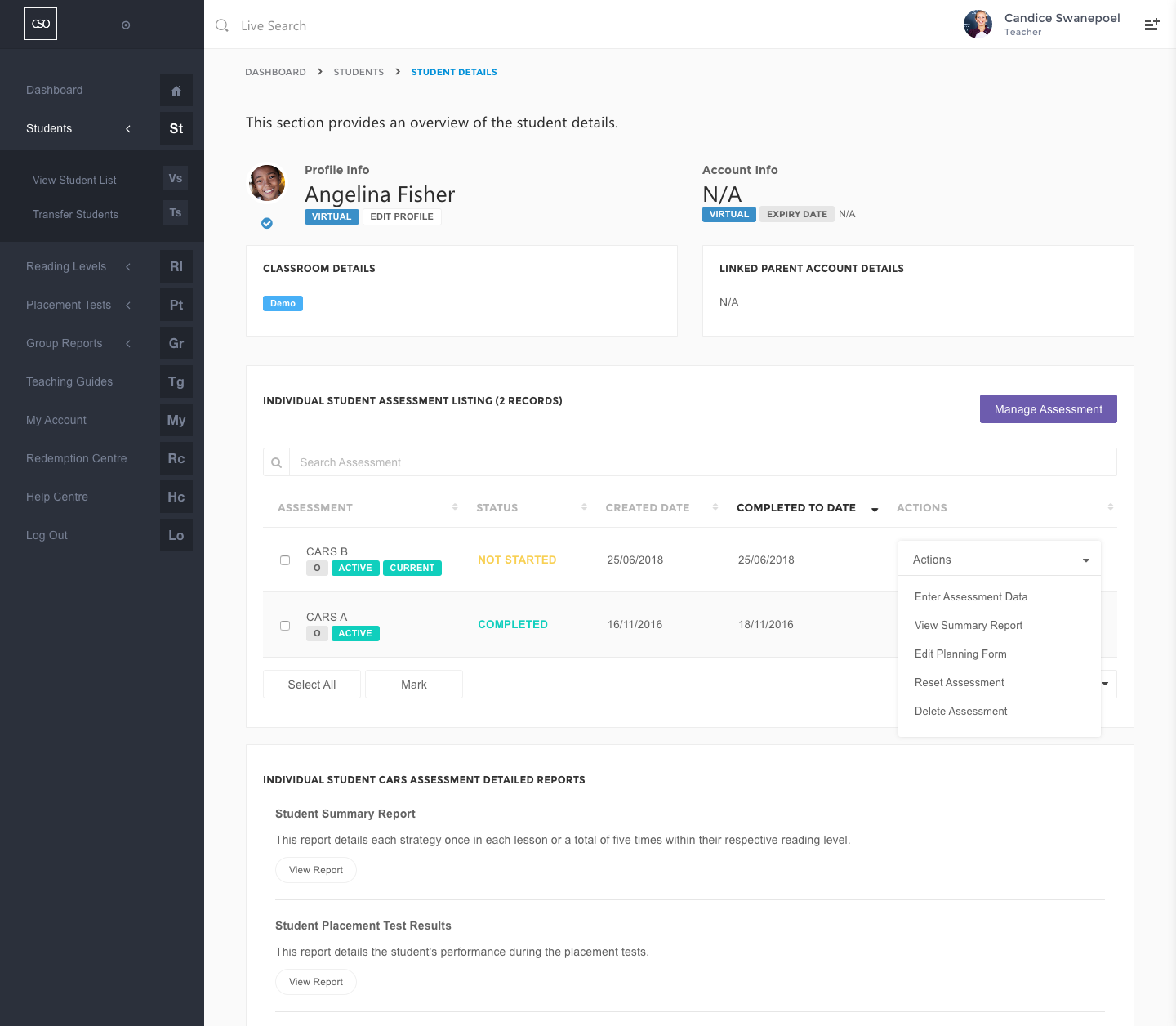

You are only allowed to enter data for an assessment that is set as current. If the assessment that you like to enter is not set as current, please select the assessment and set it as current.
Please note: Enter Assessment Data is only accessible to students with a 'virtual' account.
0
Please sign in to leave a comment.
Comments
0 comments