How can I manually assign a reading level for my student?

If you are already aware of your student’s reading level, you can manually assign them to their reading level by following the steps below
Assign CARS Level Assessment
- Navigate to the main menu, and click on Reading Levels section.
- Click on View Reading Level List.
- Choose the “Classroom” and the “Current Reading Level”. As you have just imported the student’s details into the system, the default “Current Reading Level” would be “Placement Test”.
At this point, you can assign reading level to single or multiple students in a class.
Assign reading level to a single student
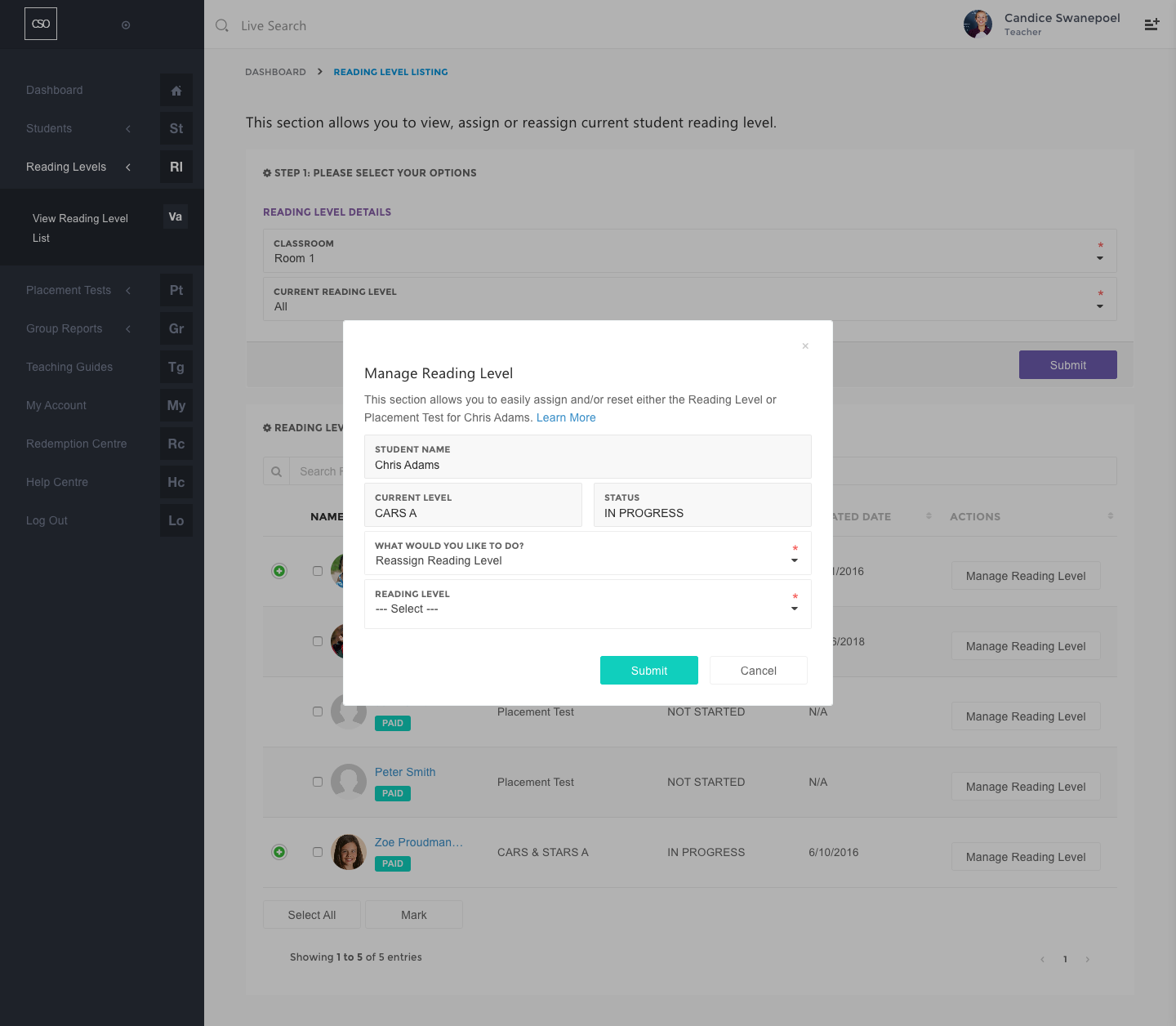
- You can assign an assessment for a single student by selecting the student row and, under the “Action” column, clicking on the Manage Reading Level button.
- In the “What Would You Like to Do?” field, choose “Reassign Reading Level”.
- Choose a single reading level from the “Reading Level” field.
- Click on the Submit button.
Assign readling level to a small group
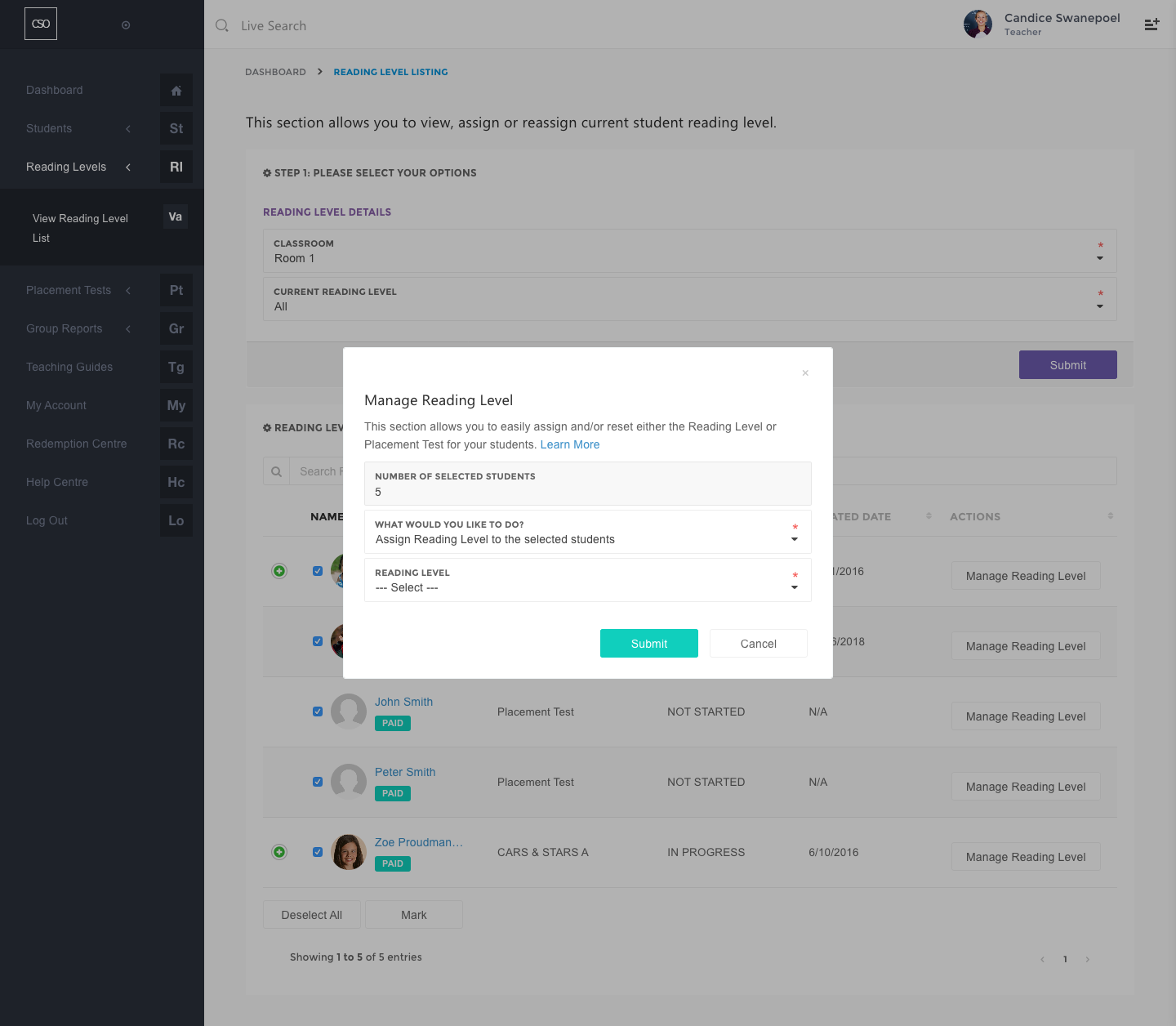
- You can assign a reading level for a group of students in the same reading level by selecting the checkbox next to the student’s image and clicking on the Mark button.
- Please ensure that you have the correct number of students selected.
- In the “What Would You Like to Do?” field, choose “Assign Reading Level to the selected students”.
- Choose a single reading level from the “Reading Level” field.
- Click on the Submit button.

Assign reading level to the whole class.
- You can assign a reading level to the whole class by clicking on the Select All button, if applicable, followed by the “Select All” button.
- Click on the Mark button.
- Please ensure that you have the correct number of students selected.
- In the “What Would You Like to Do?” field, choose “Assign Reading Level to the selected students”.
- Choose a single reading level from the “Reading Level” field.
- Click on the Submit button.
0
Please sign in to leave a comment.
Comments
0 comments